

We would like to inform you that the new school entry and exit system will come into effect next Monday, May the 4th.
Student cards will be issued to all pupils at the school, except for those in Nursery and Pre-School, on April 29th and 30th, 2026.
In addition to serving as the student’s ID card, this card can be topped up with cash or via ATM to make purchases at the school cafeteria. From May 4th, 2026, its use will be mandatory for entry into the school.
Nursery and Pre-School pupils enter with their parents; registration is carried out via the Parent/Guardian’s QR Code, which can be found on the e-Community Portal or App (https://ec.eitv.pt or https://community.e-schooling.com/). Upon arrival in the classroom, they must register the pupil using the QR Code from the Growappy app, as has been the case previously.
Note: Parents and Guardians who wish to use the Cafeteria services in the morning may do so by registering with Edgar and receiving a visitor card which you will use to access and exit the building.
For Nursery and Pre-School pupils using the school transport service, registration will continue to take place on the vans or buses, as has been the case.
Nursery and Pre-School pupils may be accompanied by other persons authorised by the school via the e-Community Portal or app, in accordance with the instructions set out below.
Entry is subject to the following timings:
Morning session: entry permitted until 9h30
Afternoon session: entry permitted from 16h30 onwards only
We ask for everyone’s cooperation in adhering to these timings, in order to ensure the smooth running of the school and the safety of the entire school community.
Pupils from Grades 1 and Year 1 up to Secondary School may enter the school unaccompanied. At the end of the day, pupils in Grades 1 to 5 and Year 1 to Year 6 must be collected in person by their Parents or Guardians at the school entrance by the turnstiles. Dona Ilda and Edgar will be present to ensure safe hand over to parents in person.
All pupils must enter via the North Entrance (Car Park Entrance).
Entry to the school by other parties will only be permitted by appointment and/or to attend to administrative matters during Office Hours (8h30 – 9h30 and 15h00 – 17h30).
In the event of a lost or misplaced card, please inform the administrative services so that a replacement can be issued at the cost specified in the current price list.
Note: Students who did not receive their card between April 29th and 30th will be given their card at the turnstiles when they arrive at school on Monday, the 4th of May.
We understand that this is a new system to heighten our student safeguarding and bring the school in line with the expectations of good safeguarding practice and some adjustment will be needed. In particular it will potentially lead to an increase in traffic at key times and we ask for your patience and understanding as the new system becomes embedded.
If you have any questions, please email suporte@eitv.pt.
.
Instructions for the e-Community Portal or App:
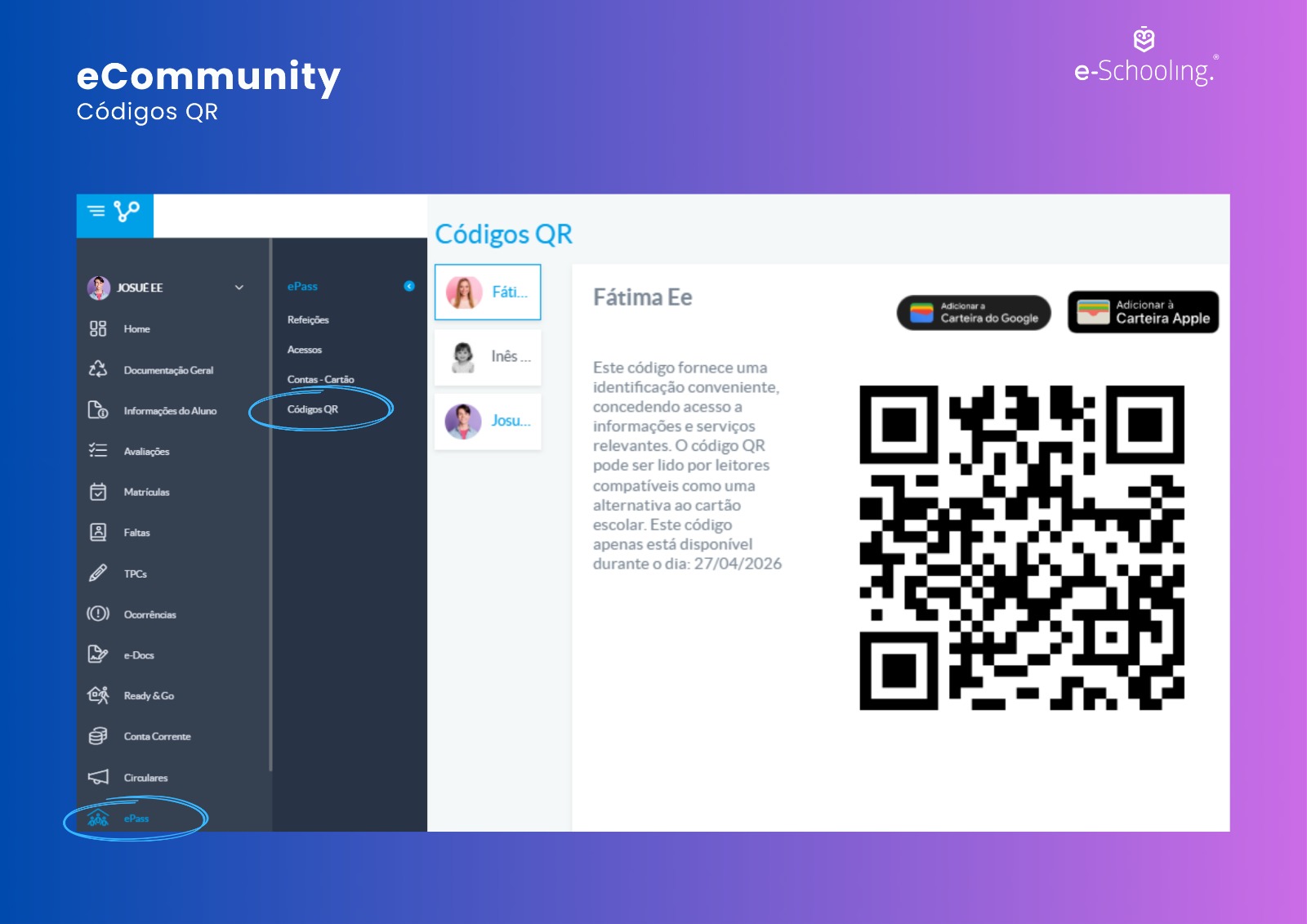
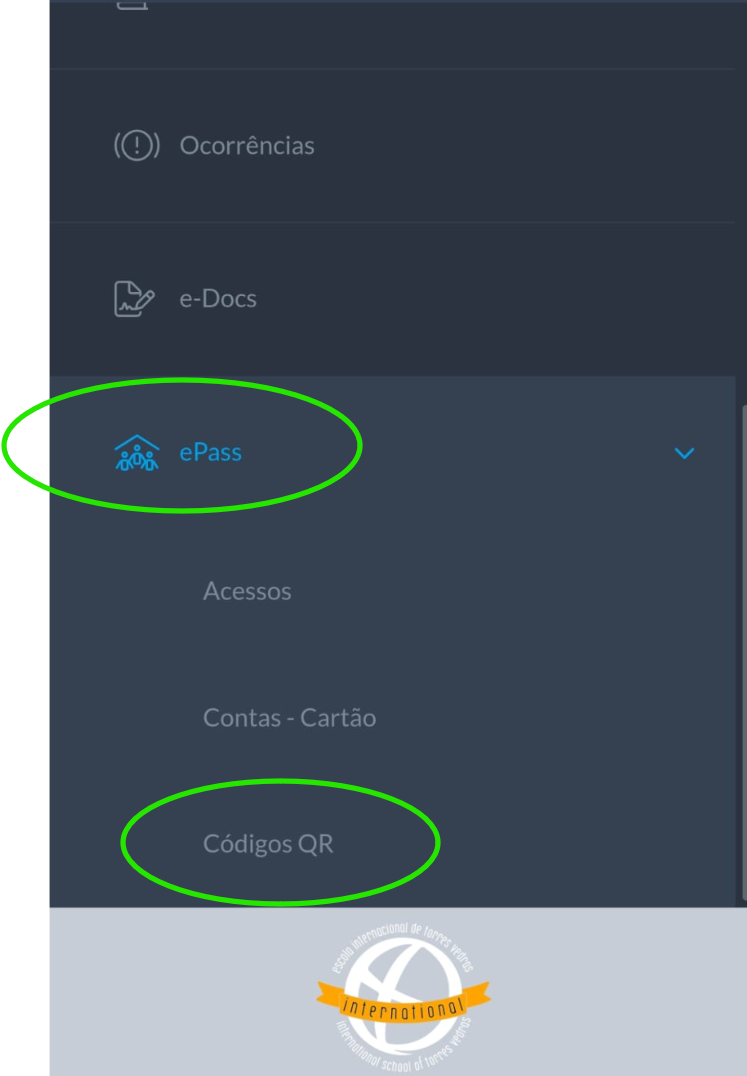
You can find the QR code by following the images below:
Portal
.
APP
.
How Parents/Guardians can create access authorisations:
A QR code can be generated for students or parents/guardians; it is also possible to generate QR codes for other parties and set expiry dates.
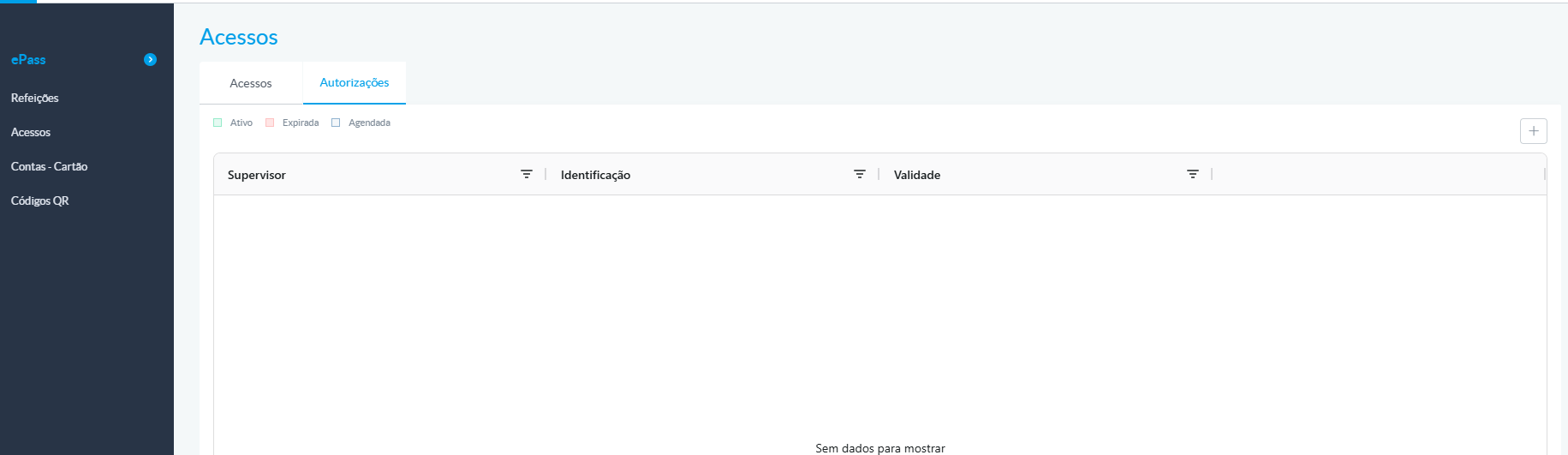
In eCommunity, via the ePass menu -> Access submenu, under the ‘Authorisations’ tab, you can add an authorisation by clicking the ‘+’ button.
.
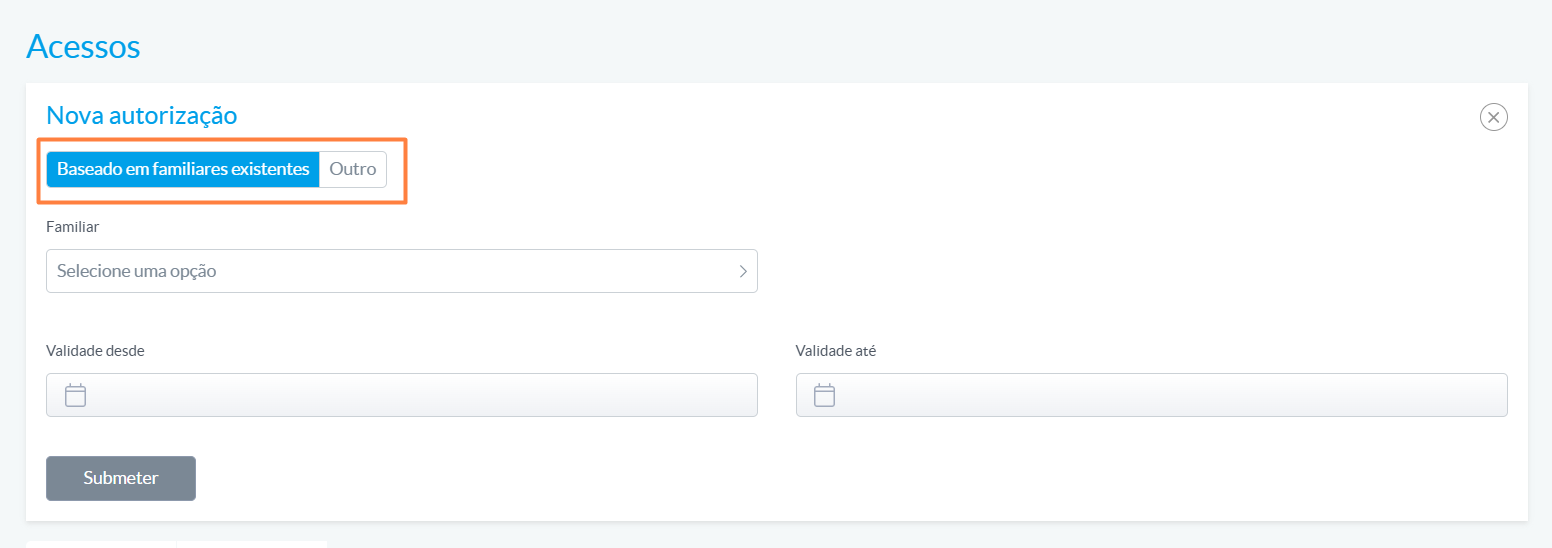
By clicking the button, a new window will open, allowing you to add a new authorisation based on existing family members (those linked to the student’s record) or to add another entity using the ‘Other’ option:
.
- ‘Based on existing family members’ option
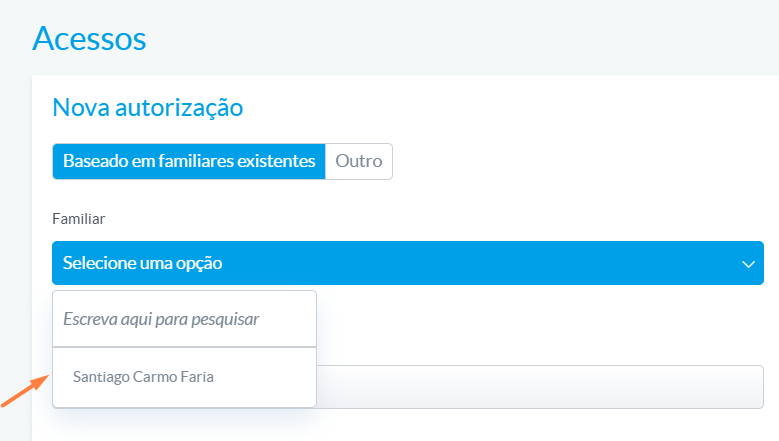
A drop-down list will appear here showing the family members associated with the student, from which you can make a selection; you can also search for the intended entity:
.
You can then set a validity period for this authorisation:

.
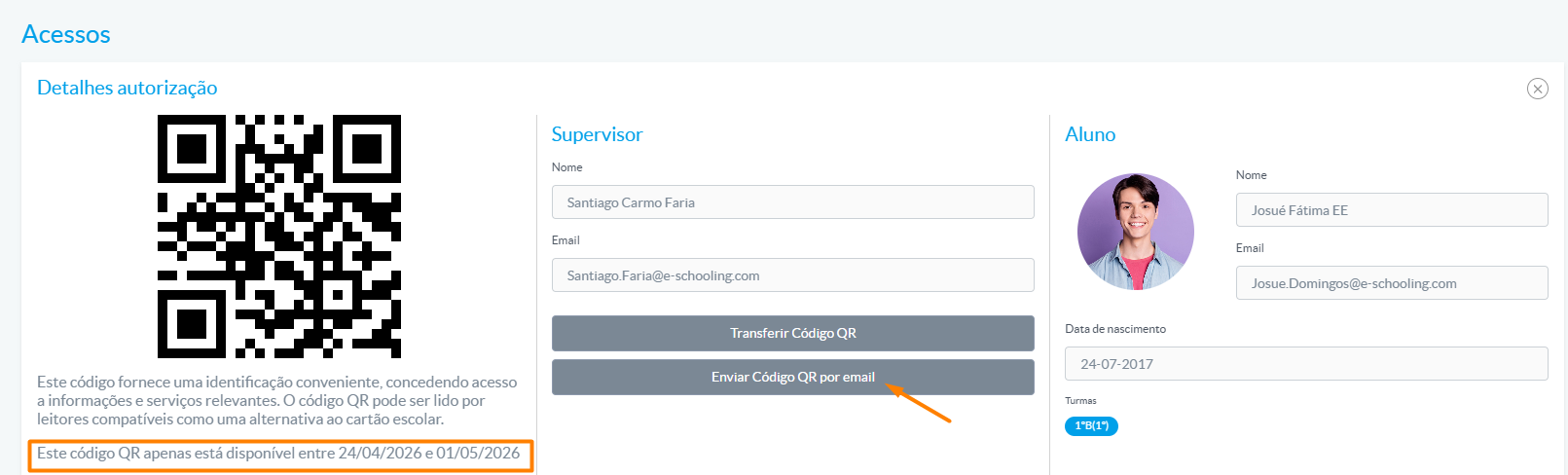
Once we have submitted this authorisation, a QR code will be generated, which will be available within the selected validity period.
.
Once this step is complete, you can download the code or email it to the designated entity.
NOTE: Authorisations are only valid for a maximum of 8 days.
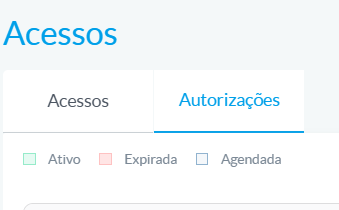
On the ‘Authorisations’ tab, a list of requested authorisations will appear, displayed in different colours depending on their status. These statuses are explained in the following legend:
.
Each row of authorisation requests features a column of icons that allow us to view the authorisation details and the corresponding QR code, and enables us to manage them, making it possible to renew or even cancel an authorisation.

.
- ‘Others’ option
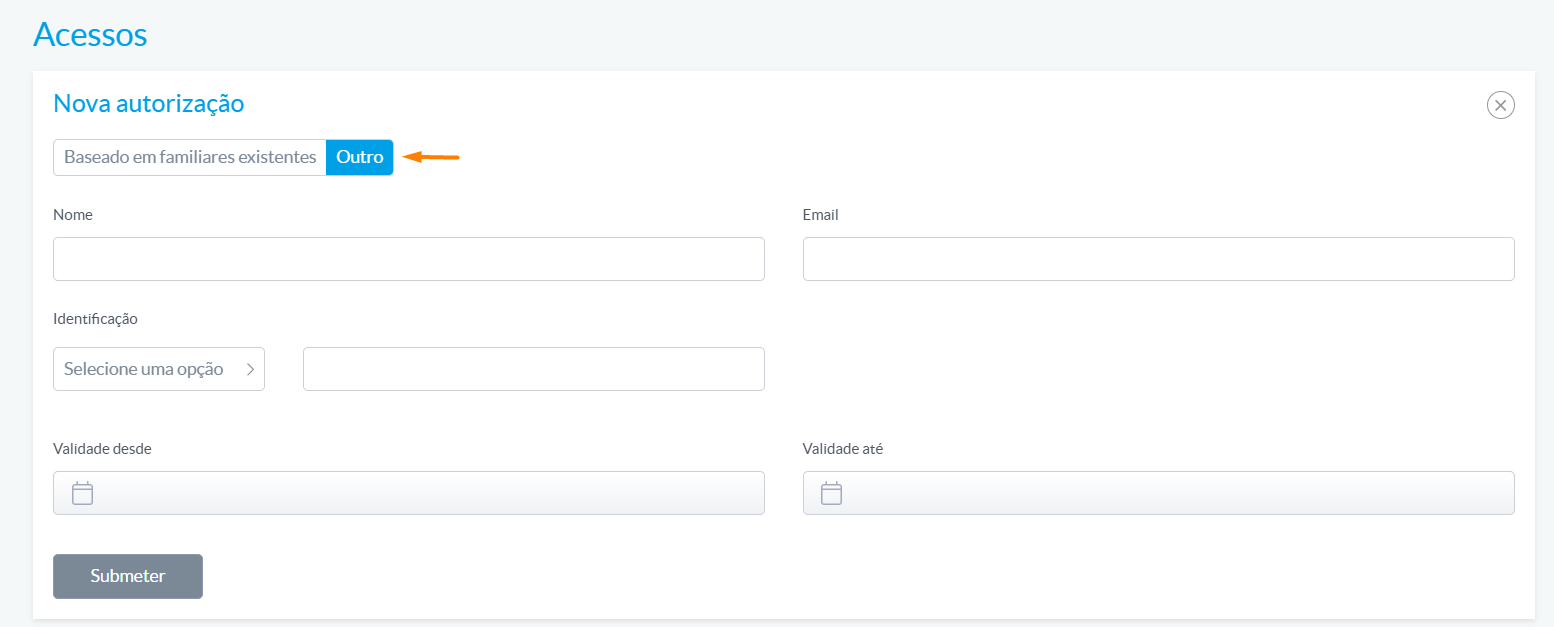
This option allows you to generate an authorisation for a new entity. To do so, simply select this option, fill in all the required details and set a validity period.
NOTE: The same rule applies here as when creating an authorisation, which only allows a validity period of up to 8 days.
.
You can also send the QR code to the entity by email.
Kind regards,
.
EITV, April 30th, 2026
The Board of Directors